
QG Magify
08/09/2026
Créer ou modifier une fiche produit Shopify : guide complet
👋 If you're reading this article, it means you're looking for how to remove the "buy now" button. I'll also explain why this button is useless. I'll show you how right away.
You can read the article or watch the video 👇, whichever you prefer.
The "Buy now" or "Dynamic checkout" button on Shopify allows you to redirect the visitor directly to the payment pages (or display a PayPal purchase button if enabled) without having to go through the cart. The button dynamically changes to reflect the customer's preferred accelerated payment method. At first glance, this feature may seem very interesting to add to a product page on your Shopify online store because it would facilitate the customer's purchasing journey; however, it's quite the opposite, and I'll explain why.
It's very rare for a visitor to click on the "buy now" button during a visit. Don't believe me? I assume you sometimes shop online. Tell me the last time you went to an online store and clicked on this button (if there was one, of course)?
I guess not! You have to put yourself in the visitors' shoes! I'm not talking about super well-known brands, but imagine a prospect who sees your Facebook ad, then lands on the product page—do you really think they'll click directly on "pay now"? There's a good chance they won't.
Generally, they prefer to check their cart before reaching the payment pages, especially if they don't know the brand or the product.
And then you'll say, "Yes, but okay, no one uses it, but it doesn't bother anyone, we can leave it!"
This brings me to my second point: LESS IS MORE. You need to understand that the main goal of a product page is to sell! Everything must be designed with this in mind; the visitor must want to add the product to their cart, and of course, you must always make it easy for them. For readability and optimization, they only need 1 button which, moreover, stands out on the product page. (Between an "add to cart" button and a "pay now" button, it will be "add to cart"!). This way, it's clear and simple; they have 1 option.
There's always an exception to the rule; the only valid case for me concerns single-product stores.
Well, I hope you've understood; let's move on to practice!
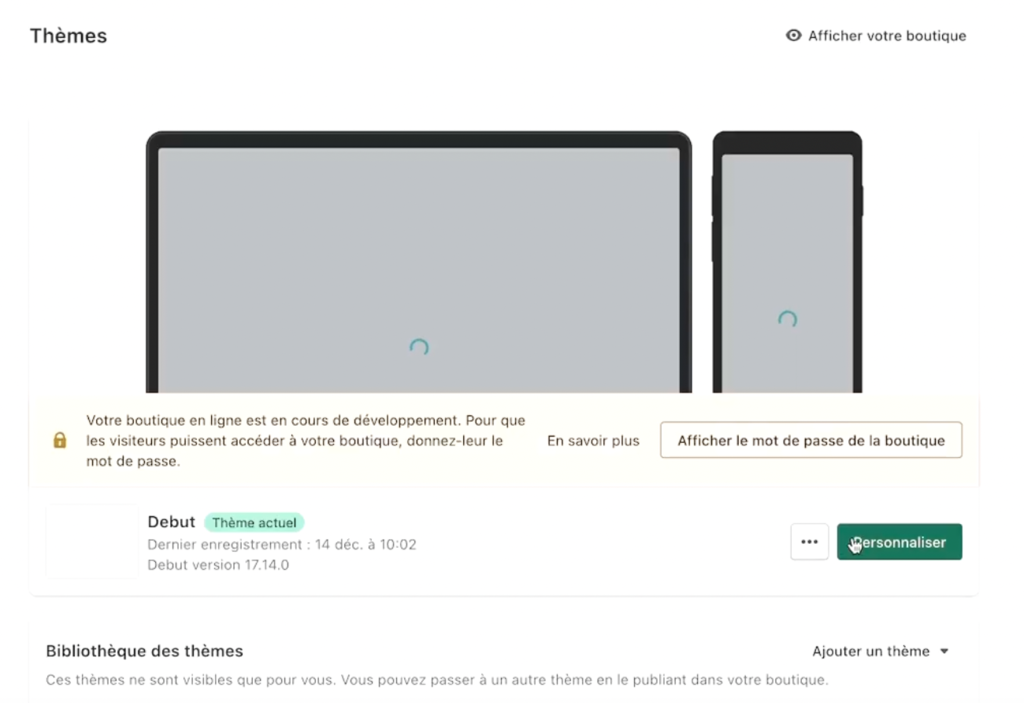
First, you need to go to "Online Store", "Customize". At the top, you need to go to "Product page", "Default product", then uncheck the "Show dynamic checkout button".

This concludes the tutorial; I hope it helped you.

CEO de Magify, Experte Shopify et Stratégiste E-commerce
Des pépites t’attendent juste en dessous
Une sélection de guides stratégiques sur Shopify, pensés pour t’aider à structurer ta boutique, augmenter tes ventes et développer ton business sans dépendre de la publicité. Voir le blog.